 MY BOWLING JOURNEY
If you coach, Improve's Coach tab has a second side: the bowlers you coach, what they're working on, and how they're bowling. Coaching is part of Pro, for coaches and bowlers alike. On the free plan the Coach tab shows a locked Coaching card with See what Pro adds.
Turn on the coach view
- Tap the gear, then Profile. On the Coaching card, tap I coach.
- Tap Improve, then Coach. A View card now has I'm bowling and I'm coaching.
- Tap I'm coaching. It says "Showing the bowlers you coach."
Tap I'm bowling any time to go back to your own game and your own coaches.
Already connected with a bowler by code but never turned this on? The Coach tab says "You coach" and their name, with Show the bowlers I coach. One tap turns on both.
Add a bowler
- In the coach view, tap + Add a bowler on Your bowlers. It picks I coach them under Connect with someone for you.
- Tap Create a code. Read it to your bowler: "Read this to the bowler you're coaching." It works once, for the next 7 days.
- They type it under Got a code? on their own phone and tap Connect. You're connected straight away.
It works the other way too: your bowler picks They coach me, makes the code, and you type it under Got a code?. What they see is on Working with a coach.
Your bowlers at a glance
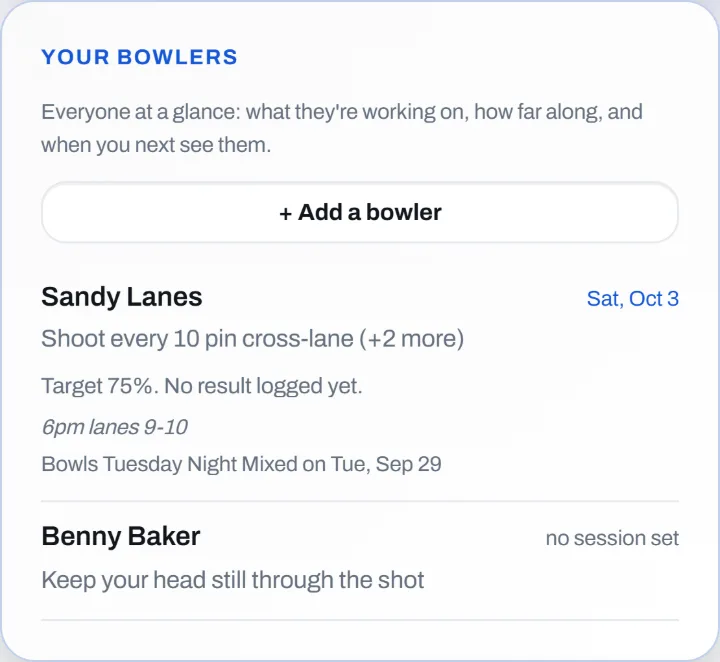
The Your bowlers card has a row for each bowler:
- Their name. Tap it to open that bowler.
- Your next session with them, or "no session set".
- The task due soonest, and how many more are open, like "(+2 more)". Or "Nothing assigned yet."
- For a task with a target, the target, like "Target 75%. No result logged yet." Once they answer a task it leaves this row, and the next open one takes its place.
- Your note for the next session.
Under it, Your Bowlers has a chip for each bowler. A • before a name means they've answered a task since you last looked. While answers wait, the tab reads "Coach · 2" and your Inbox says how many task updates came in. Opening the coach view marks them read.
One bowler
Tap a bowler's name or chip. Under it:
- "Goal for" and their name: their goals, and a place to set one. See below.
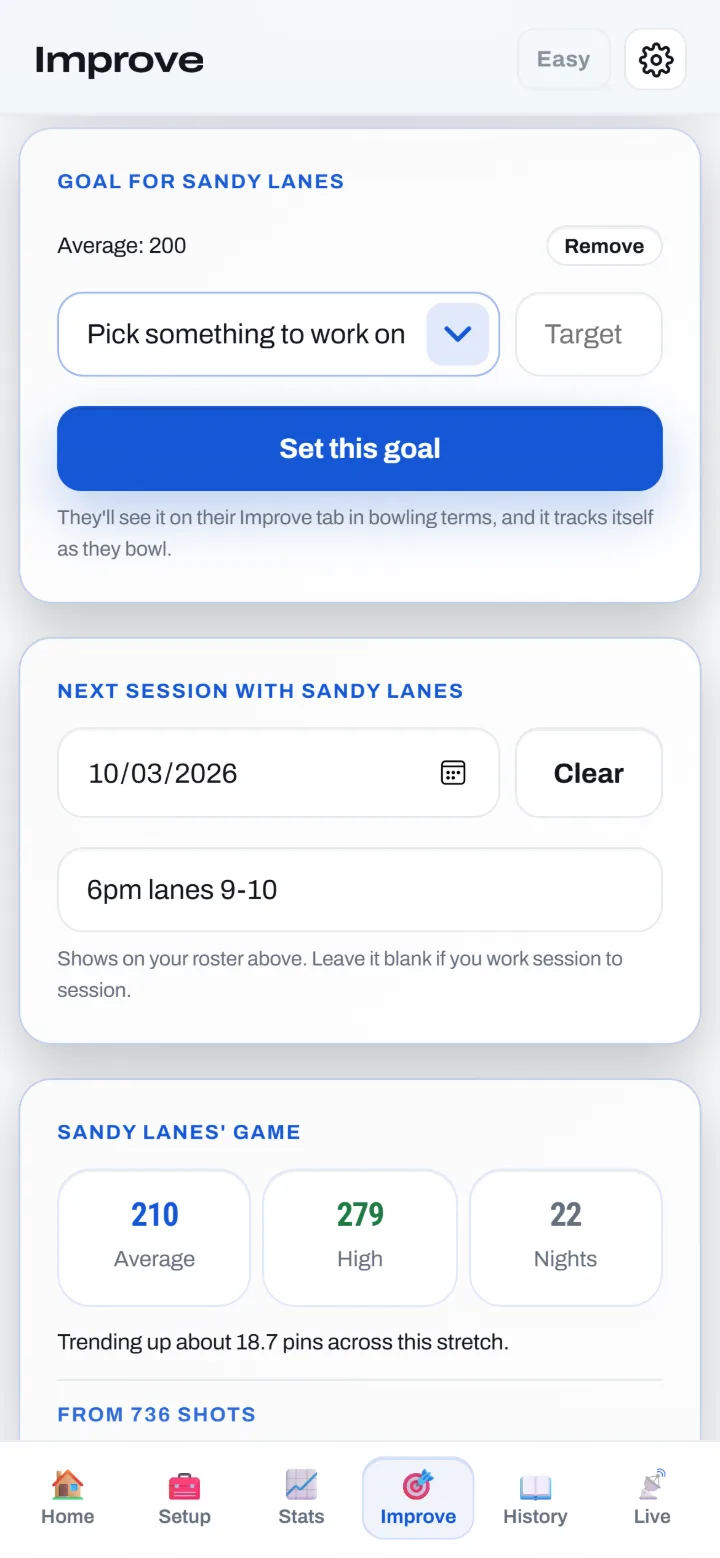
- "Next session with" and their name: pick the date, or Clear it. Add a note like "6pm lanes 9-10". Both show on your roster.
- Their game: Average, High and Nights, with a line on which way their average is heading, and Recent, their last five nights. If they enter frames, you also get "From 312 shots": their Strike, Spare, 10 pin (7 pin for a left-hander) and Single Pin rates, how often a first ball leaves a Split, how many each one is from, and where their misses go most.
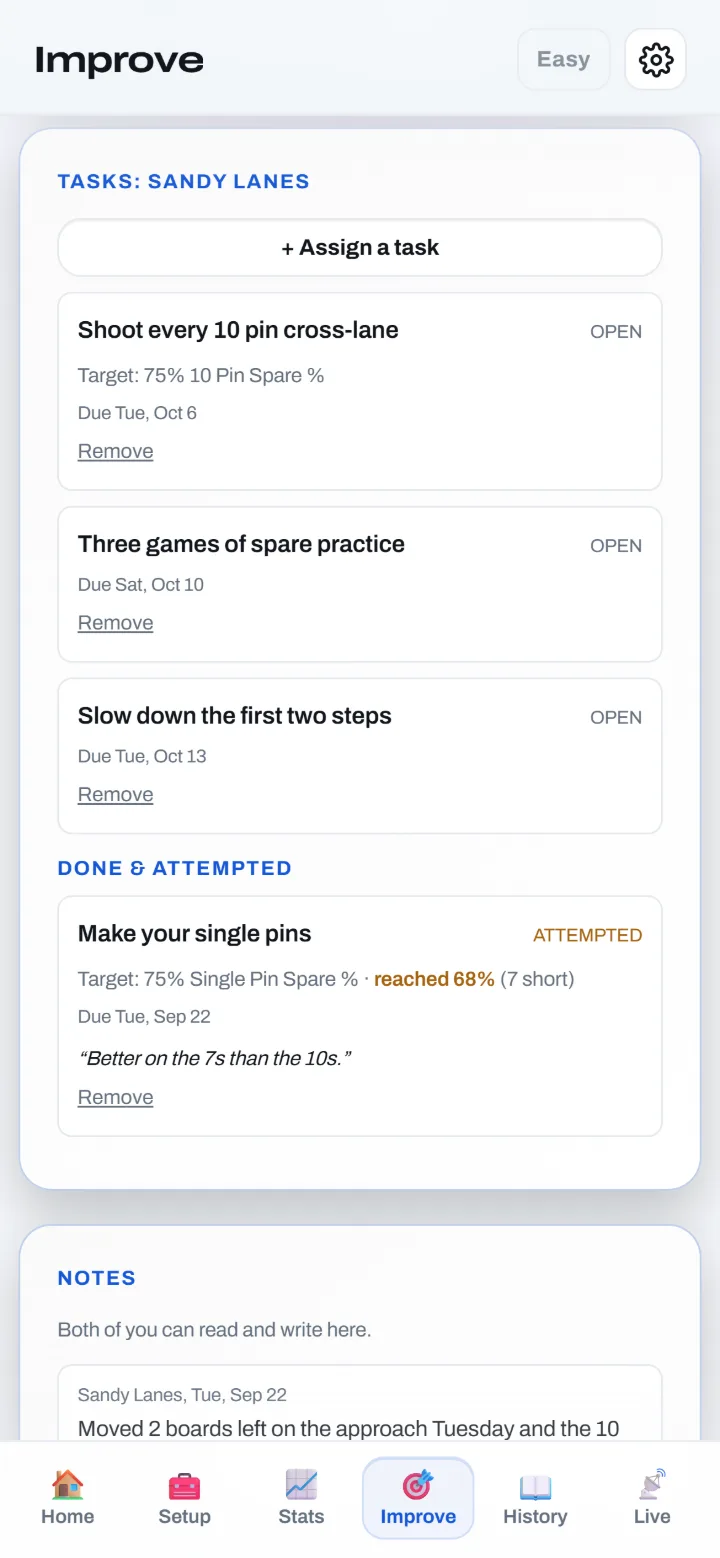
- "Tasks:" and their name, with + Assign a task.
- Notes, for both of you.
Set a goal
- Under "Goal for" and their name, pick a statistic under Pick something to work on. The list is the same as Goals.
- Type the number under Target.
- Tap Set this goal.
The goal goes on your bowler's Goals tab on Improve, with their own, and tracks itself as they bowl. It's one goal per statistic, so yours replaces theirs for the same statistic. Every goal they have is listed here with its target, like "Average: 200", and Remove takes one off for both of you. Out of range, it tells you, like "Average targets run from 50 to 300." With no connection it says "Couldn't send that just now. Check your connection and try again."
Assign a task
- Tap + Assign a task.
- Type the task under What should they work on?. It needs a title.
- Add more under Detail (optional) if it helps.
- For a number to aim at, pick one under Measurable target (optional) and type the target. The list is the same as Goals: Average, High Game, High Series, Strike %, Spare %, Single Pin Spare %, 10 Pin Spare % and Clean Frame %. Or leave it on No target.
- Pick a due date if there is one.
- Tap Assign, or Cancel.
The task shows on their Coach tab and in their Inbox. When they answer, it moves under Done & Attempted with the number they reached and how far short, like "reached 68% (7 short)", and any note they left in quotes. Remove takes a task away.
Notes
Both of you can read and write under Notes. Type in the box and tap Post.
Notifications
Coach activity in Settings > Notifications covers your bowlers' updates as well as your own coach's tasks and notes. See Notifications.
Ending it
End coaching relationship, at the bottom, ends it straight away, with no second question. You stop seeing their bowling. To block or report someone, use the menu beside "Block or report" and their name. See Blocking and reporting a bowler.