 MY BOWLING JOURNEY
League nights are saved to a league, so your league comes first. A team is optional, but it's how your scores count for your team and how your teammates can follow your night live.
Add your league
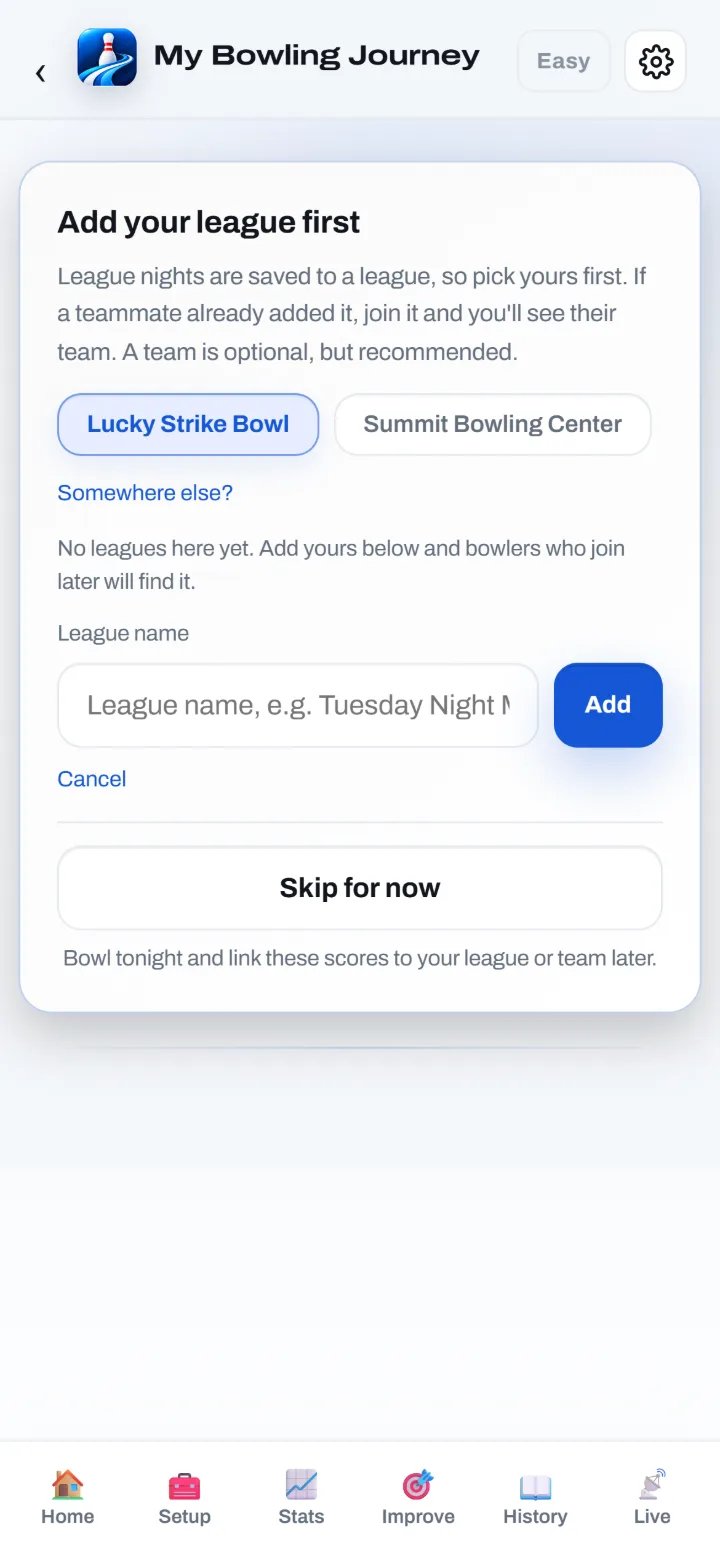
With no league yet, tapping League on Home asks for your league before anything else: Add your league first.
- On Home, tap League.
- Under Where is the league bowled?, pick your bowling center from your home centers, or search for it by name. Not in the search? Tap Can't find it? Add by name.
- The leagues other bowlers already added at that center are listed under Leagues at this center. If yours is there, tap Join.
- Not listed? Type your league's name in the box and tap Add.
- Under Which night do you bowl?, tap your league night. If it doesn't start at 7:00 PM, change Starts at. Then tap Save. Your league night reminder uses both and comes an hour before. Tap Skip if you'd rather not say.
- On a phone, the app may ask if you want a reminder before league night. Tap Yes or Not now. More on that in Turning on reminders.
Your league is in, and the app offers your team next.
A few other things you might see:
- No bowling center? Tap Skip, no center and type the league's name.
- If a league with that name is already at your center, you join it. If one with that name has no bowling center set, the app shows it first: tap Join if it's yours, or None of these: create mine.
- Not ready to set up your league tonight? Tap Skip for now under the league step. You can bowl tonight and link those scores to your league or team later.
Other places to add a league
- Setup > League > Join or add. The same steps. If you've set a home center, it opens on that center's leagues. Tap Change to pick another.
- A league code. On the same tab, under Have a league code? Enter it here., type the code a bowler in your league sent you and tap Join. Then tap your night under Which night do you bowl?, set Starts at and tap Save (or Skip), and answer the reminder question if your phone asks, the same as when you add a league. A league whose night you already picked isn't asked again.
- Easy mode. The league screen asks the same way. Already have a league? Pick + New league from the league list.
Every league you're in has its own code, to text to the other bowlers in it. It's on Setup > League > My leagues, under the league's name, with Copy beside it.
My leagues is also where you set the rest of your league: the center, Season dates, 10 pin or 9 pin no-tap, Games per night (3 to start) and the Usual lane condition.
Your team
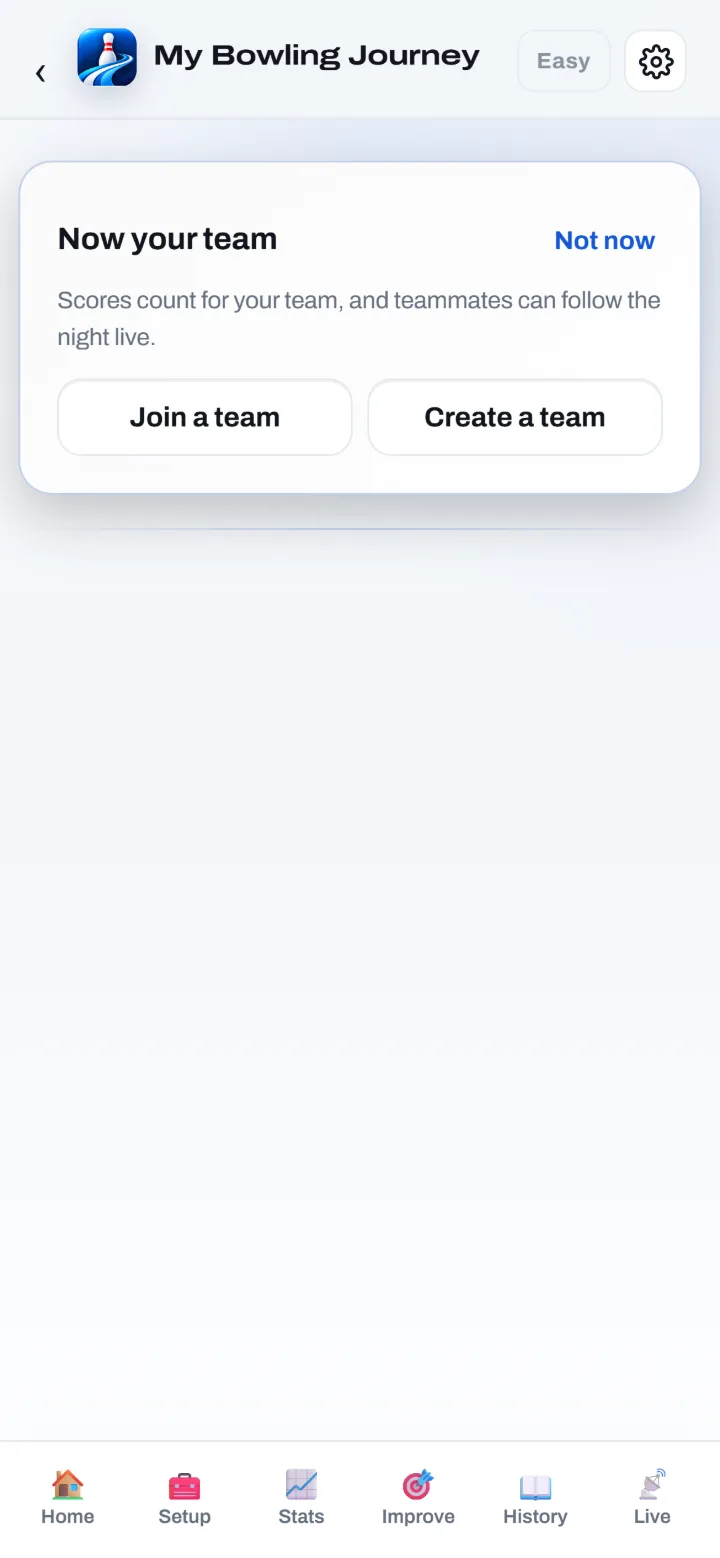
Right after you add or join a league, the Now your team card comes up, once for each league.
- If your team is already in the league, it's listed under Teams in this league. Tap Ask to join. You're on the team once someone on it says yes.
- Got a code from your captain? Tap Join a team, type the Join code and tap Join.
- Team not in the app yet? Tap Create a team, type the Team name and tap Create. The app shows your team's join code. Tap Share to send it to your teammates.
- Not sure yet? Tap Not now. Your scores count either way, and you can add a team any time.
Later, Setup > Team > Join or add has the same ways in:
- Have a join code? Enter it here. Type the code and tap Join.
- Pick a league, then find your team and tap Ask to join. Anyone on the team can approve you.
- Add a team: pick your league under Pick a league first, then tap + Add team, type the Team name and tap Create team.
Once you've bowled a night in a league without a team, Set up asks Want these to count for your team? Tap Add or join my team, or Don't ask again for this league.
Add your teammates
Your team works with just you on it. To add the rest:
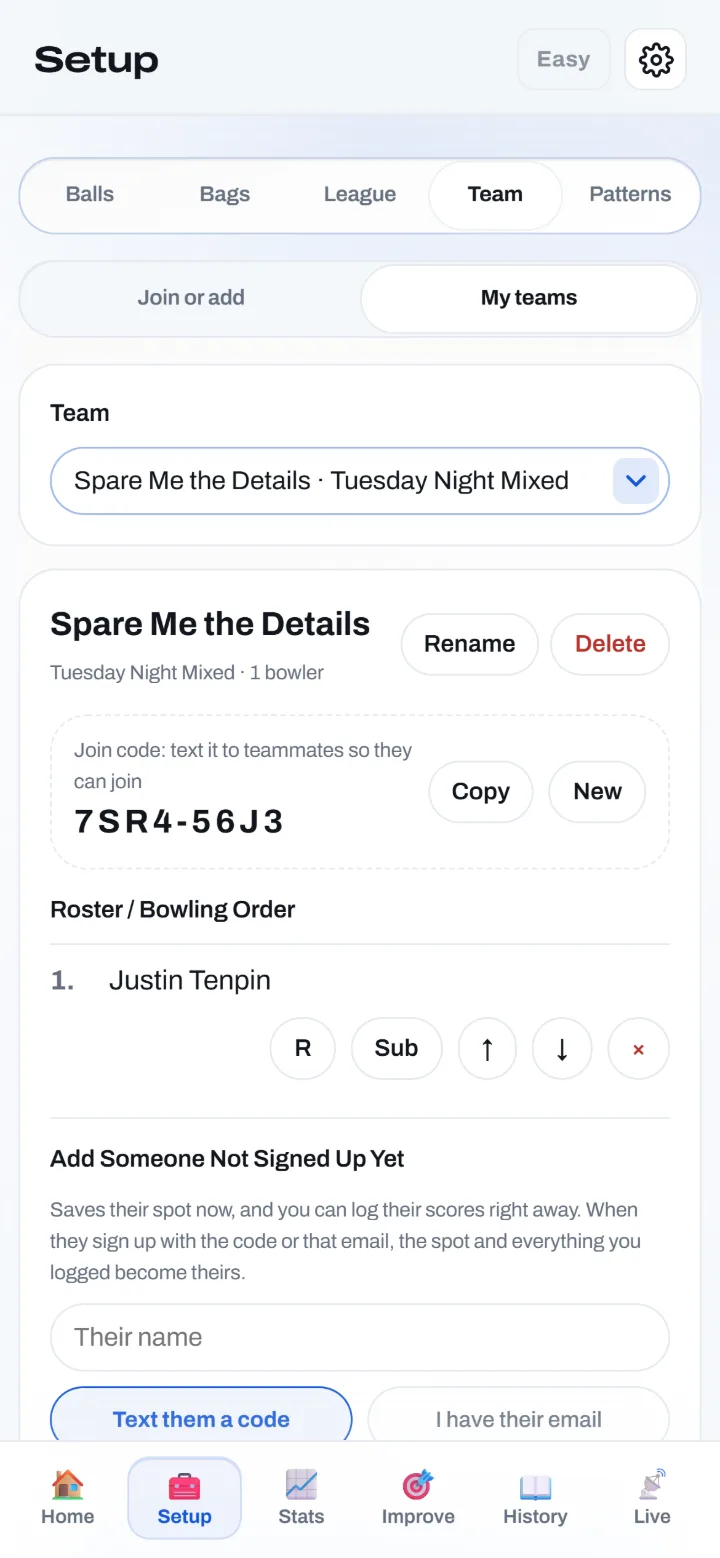
- Go to Setup > Team > My teams.
- Tap Copy beside the join code and text it to your teammates. When they enter it, they're on your team.
- For a teammate who hasn't signed up yet, go to Add Someone Not Signed Up Yet. Type their name, pick Text them a code, or I have their email and type it, then tap Add to Roster. You can log their scores right away. When they sign up with the code or that email, the spot and everything you logged become theirs.
The roster is your bowling order. Use the arrows to move a bowler up or down, tap Sub to mark a sub, and tap R or L for their bowling hand.
Scoring for teammates on the night is covered in Scoring for a team.
Free and Pro
- The free plan covers one league and one team. Practice and open bowling don't count as leagues.
- Every new account has Pro for its first 30 days, so you can add more leagues and teams while it lasts.
- Once you're at the limit, Setup > League shows More leagues (or More teams) with See what Pro adds in place of the add steps.
- Joining a second team stops there too, with a join code or Ask to join: "The free plan covers one team, and you're already on one. Joining another is part of Pro."
- If you have more than one league when Pro ends, the app asks you to Choose your active league. The others are paused, not deleted, and come back when you subscribe. You can change your pick once.