 MY BOWLING JOURNEY
In Easy mode a tournament is one page: no stages, no frames, just your game scores. Tap Tournament on Home while the Easy switch is on. See Easy mode and the full app.
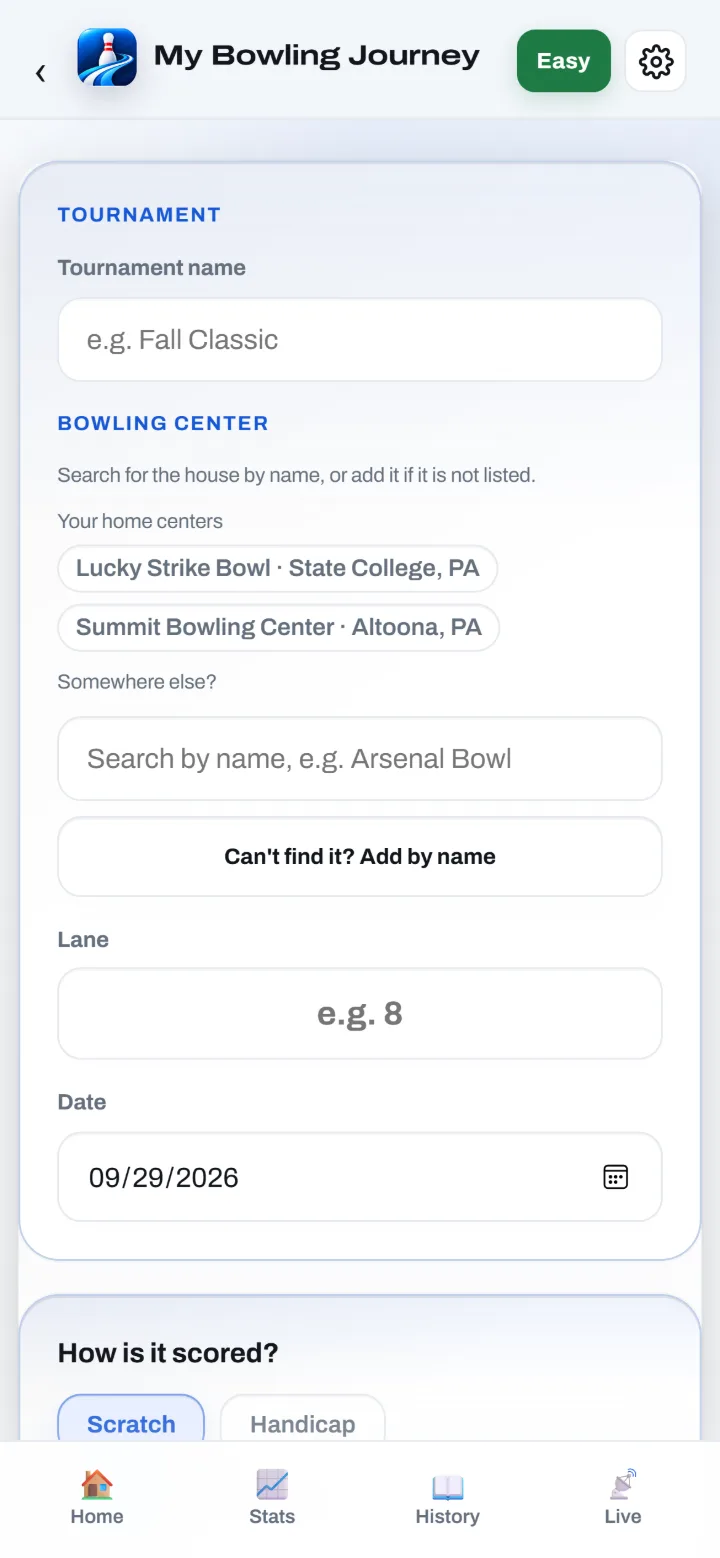
Score a tournament
- Type the Tournament name.
- Pick the bowling center: one of Your home centers, or search by name. It's optional.
- Type your Lane if you like, and check the Date. It's today unless you change it.
- Under How is it scored?, tap Scratch or Handicap, and 10 pin or 9 pin no-tap. For Handicap, set Your handicap per game.
- Type each game's Score in the Games table, and mark each game Q, M or S (see below). There are three lines to start. Tap + Add a game for another, and the × to take one off.
- The Total adds them up. In a handicap event it reads With handicap, your handicap added to every game.
- Under How did it finish?, tap how it went, and add anything worth remembering in the box under it.
- Tap Save Tournament.
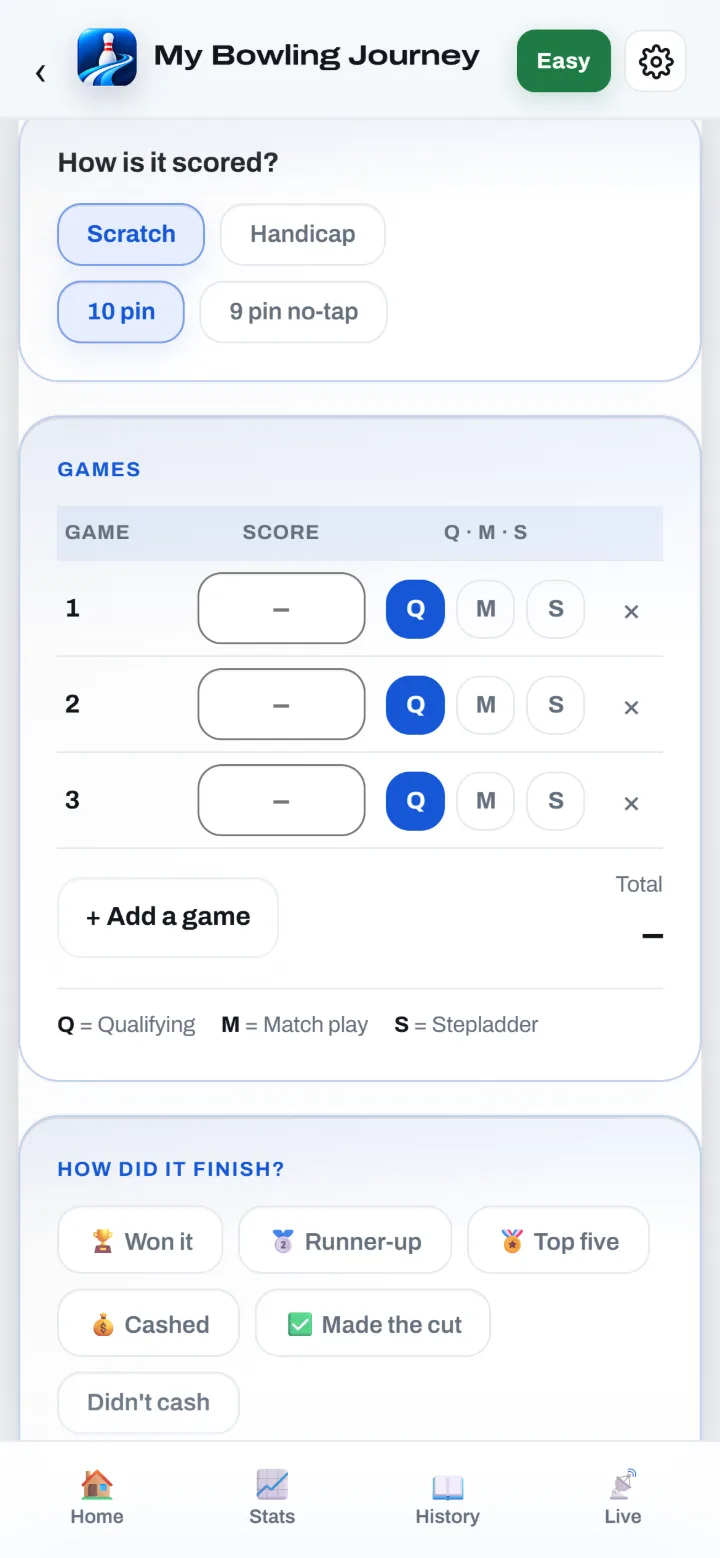
Q, M and S
Each game is marked as one of three, shown in the key under the table:
- Q: qualifying.
- M: match play.
- S: stepladder.
Every line starts on Q. A new line takes the mark of the one above it, since games come in runs.
After Save Tournament
✓ Tournament saved shows each game (with Match play or Stepladder beside the ones that were), the Total (With handicap in a handicap event), your Average and how it finished. Tap Done to go back to Home.
If something's missing, a line in red says what: "Give the tournament a name.", "Pick the date.", "Enter at least one game." or "A score is a whole number from 0 to 300." A box with a score out of range turns red.
- Every save is a new tournament.
- Close the app before saving and what you typed is still there when you open Tournament again on this phone. It isn't kept for long, so save before you leave the center.
- The tournament is saved where the full app keeps it. Turn Easy mode off and it's there: your Q games as the squad, M games as match play and S games as the stepladder. A game marked M or S means you made the cut.
- Easy mode keeps your scores only: no opponents, brackets, side pots or money. The full app has them.
- Your tournaments show on Easy mode's Stats page. See Stats in Easy mode.