 MY BOWLING JOURNEY
When you score frame by frame, the app can keep more than the pins: the ball you threw, its surface, how a strike hit, and where the ball went on the lane. All of it is optional. Skip it and your score is exactly the same.
This is for your own frames. When you're keeping score for a teammate on a league night, their frames are scores only.
The ball and surface
Under the scoresheet on Scoring is one line with your ball on the left and its surface on the right. Whatever is on that line goes with every ball you save, until you change it.
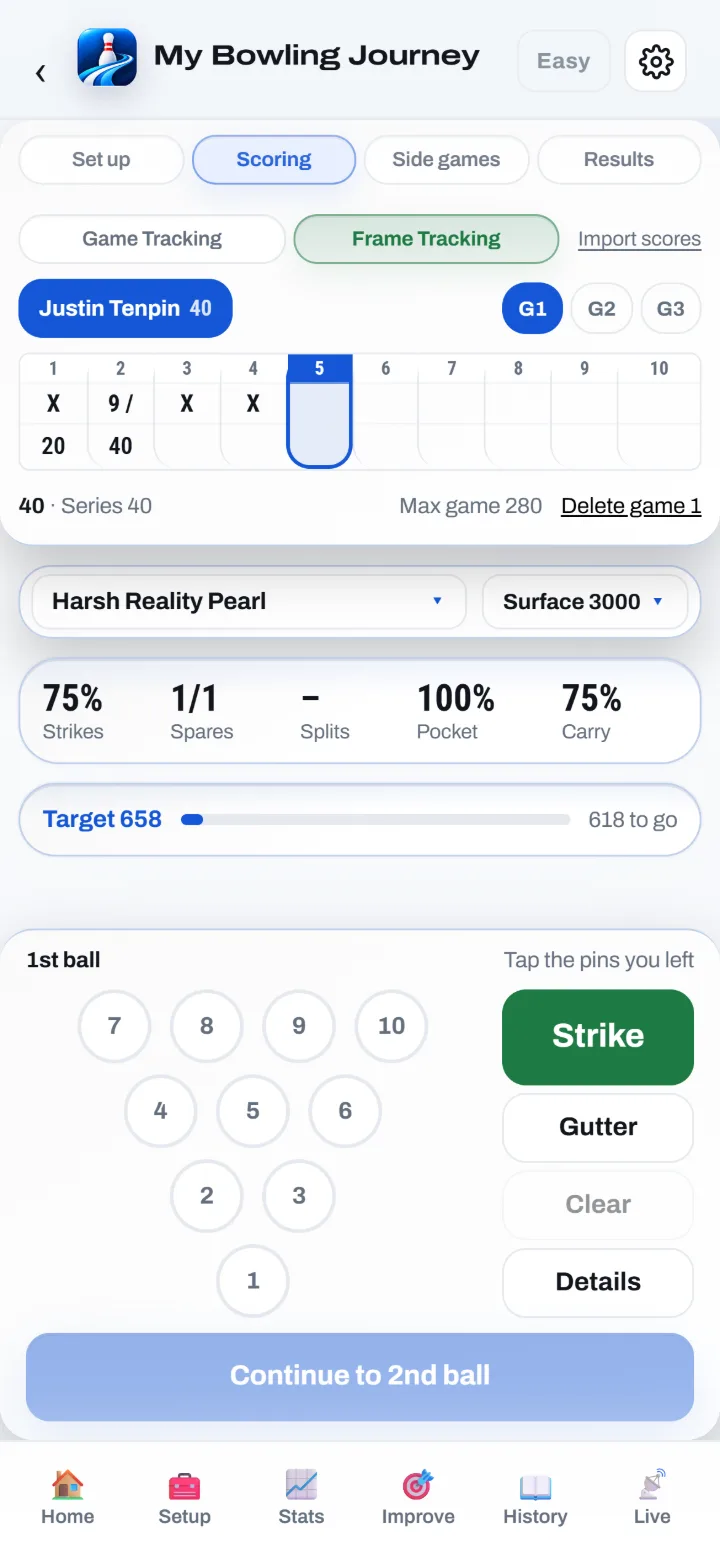
To change the ball:
- Tap the ball. The list shows the balls in tonight's bag (or the ones you throw most), with the ball in your hand first.
- Don't see it? Pick More balls at the bottom. Pick a ball opens with your whole arsenal and a search box.
- Picked one that isn't in tonight's bag? The app asks once whether to Add to the bag so it's one tap next week, or use it Just tonight.
To change the surface, tap the surface box beside the ball and pick one: Box, 180, 360, 500, 1000, 1500, 2000, 3000, 4000, 5000, Lane Shine or Polish. It works once a ball is picked, and it also updates that ball's surface in your arsenal.
On a short phone the ball line can move to the bottom left of the pin deck: tap the ball there to change the ball or the surface. See The pin deck, step by step.
Switching balls mid-night: when you pick a different ball from the one you last threw tonight, a quick pop-up asks why. Tap any reasons that fit, like Too early, Lane transition or Surface worn, or none, then Done. They're saved with the next ball you throw.
Skipped it? Tap the first ball you threw with the new ball on the scoresheet, then Details on the pin deck. The sheet says which ball you switched from, and you can add the reasons there. See Fixing a frame or game.
The sheet after each ball
After you finish a frame, a sheet comes up from the bottom for that frame's first ball:
- A strike: it opens right away, titled like Frame 4 strike: how did it hit?
- Anything else: it opens once the frame is done (after your spare ball, or when you tap Spare or Missed), titled like Frame 4, first ball.
- The 10th: it says which ball, like Frame 10, 2nd ball. See The 10th frame.
Your ball is already saved when the sheet opens. How a strike hit saves as soon as you tap it. Everything else is saved when you close the sheet: tap Done, tap outside the sheet, or use your phone's back button.
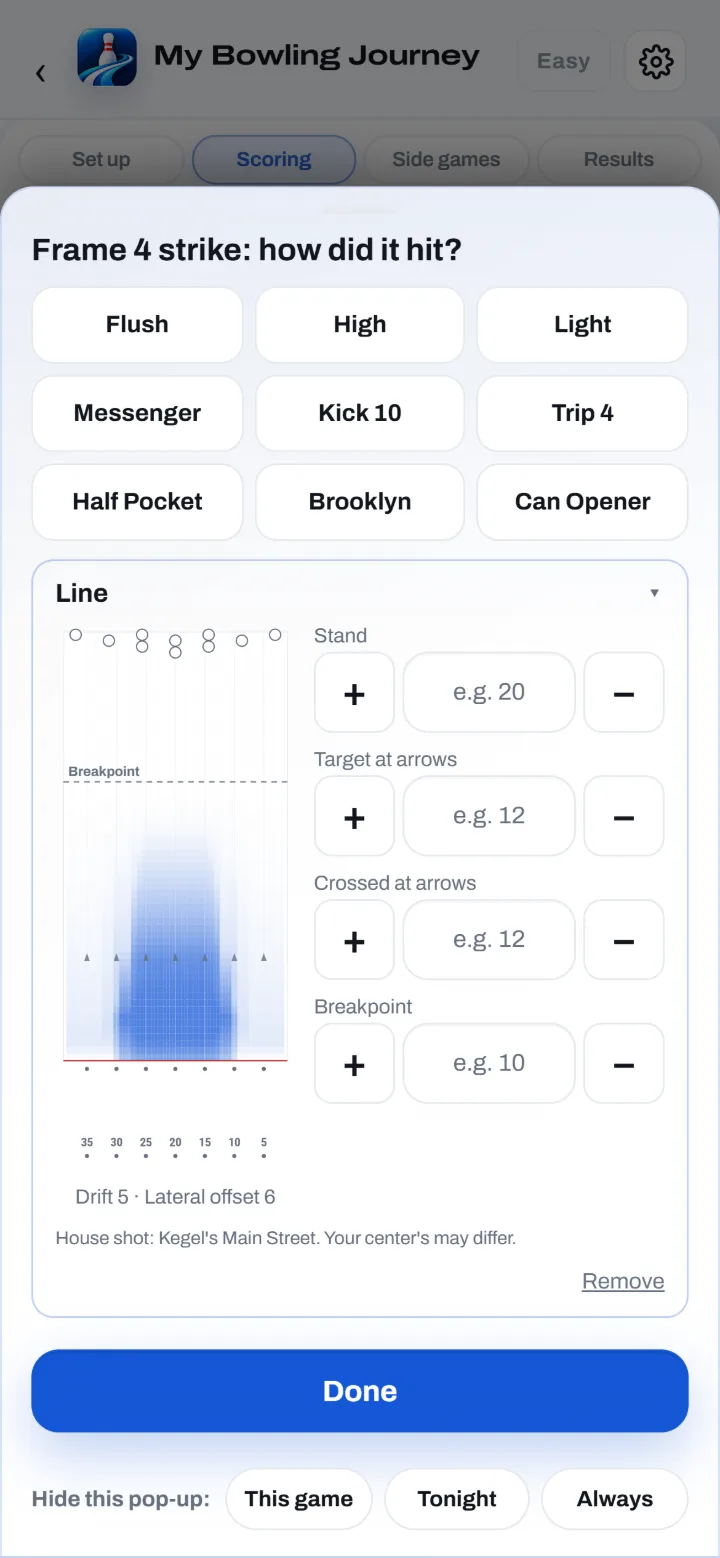
How a strike hit
Nine buttons: Flush, High, Light, Messenger, Kick 10, Trip 4, Half Pocket, Brooklyn and Can Opener. Left-handers see Kick 7 and Trip 6 instead. Tap one to pick it, tap it again to clear it. The sheet stays open so you can add the rest.
Why didn't it strike?
On a first ball that didn't strike, the sheet asks Why didn't it strike? with six answers: Light, High, Didn't carry, Brooklyn, Missed the headpin and Bad break. Pick one, or none. If the headpin is still standing, Missed the headpin is already picked for you. Tap another answer to change it, or tap it again to clear it. Your answers add up in Stats, on the First ball card's Non-strikes tab.
Line
Four board numbers, in the order the ball travels: Stand, Target at arrows, Crossed at arrows and Breakpoint.
- Tap + or − to move one board, or tap the box and type.
- A greyed number like "e.g. 12" is only where your first tap will land. Nothing is saved until you tap or type.
- + and − move the way they point on the lane for your hand, so on a right-hander's sheet + is on the left.
- With a target and a crossed board both in, the sheet tells you On target or how far off you were, like 2 boards left of target.
- Your Stand and Target are remembered on this phone for that ball on that lane, so your next frame on that lane starts from them, tonight and on later nights, until you change them.
Beside the numbers is a drawing of the lane: this ball's line, your earlier first balls on this lane tonight as dashed lines, and the oil pattern you're on.
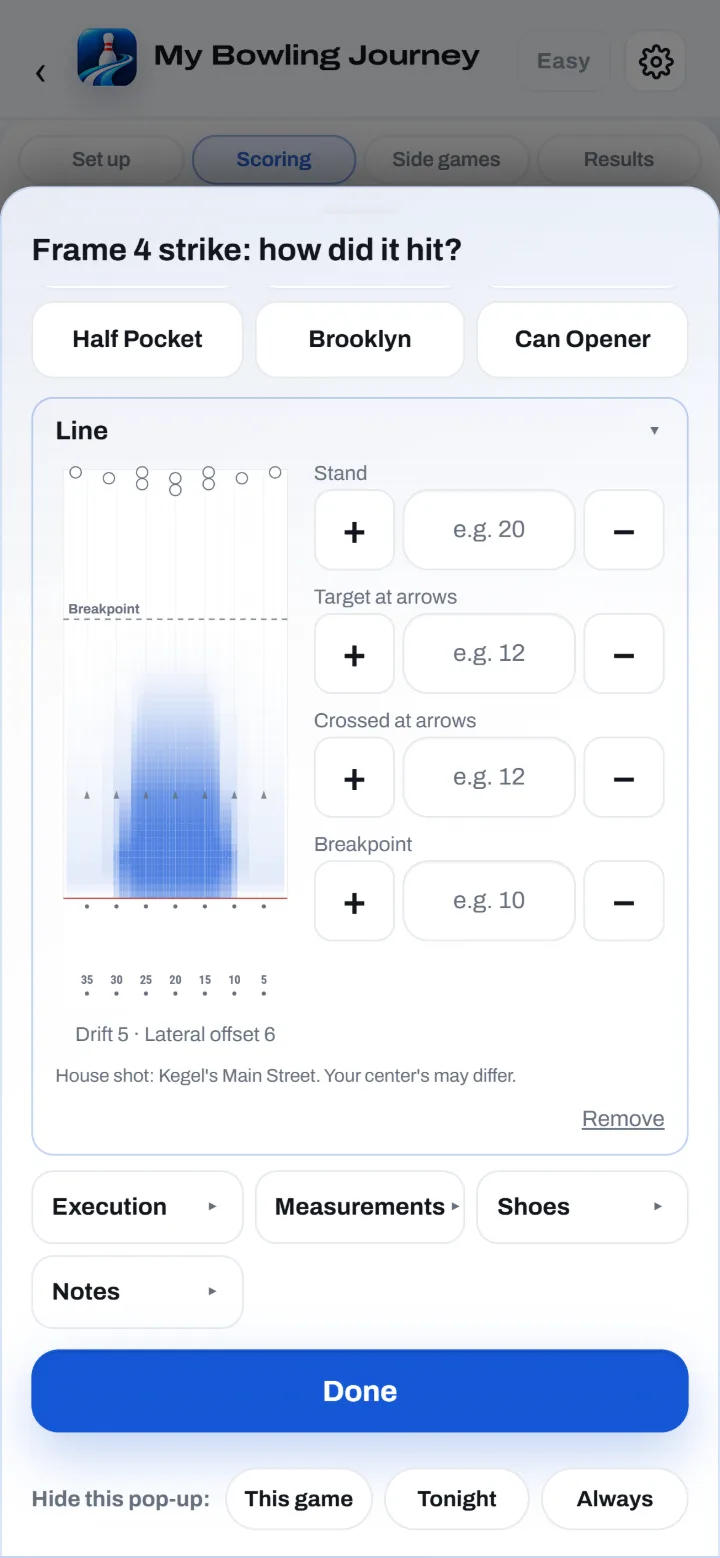
Execution, Measurements, Shoes and Notes
- Execution: your release, Perfect, Good, Acceptable or Poor, and how you missed: Left, Right, Fast or Slow. You can pick one side and one speed together, like Left and Fast.
- Measurements: Speed in mph, Rev rate in rpm, and Axis rot. and Axis tilt in degrees. It's on the sheet in practice and on league nights, and starts off it in tournaments.
- Shoes: your Heel # and Sole #.
- Notes: anything about this ball.
Tap a section's name to open or close it. Your phone remembers which ones you keep open. Line starts open and the rest start closed.
Fewer questions, or none
- Take a section off: tap Remove under an open section. It goes from the sheet for this kind of bowling only (league, tournaments or practice), after the app asks you. Nothing you already saved is deleted, and your stats keep it.
- Hide the sheet: at the bottom, Hide this pop-up: has This game, Tonight and Always.
- Bring it all back: go to Settings > Profile and open Ask for shot details after every first ball. Tap On to get the sheet back after Always. Restore all shot details brings back every section you removed. Measurements comes back in practice and league only.
The Details button
Hidden or not, Details on the pin deck opens the same sheet for your most recent ball. If you've tapped pins for a first ball and haven't finished the frame yet, it describes that ball, and its details are saved with the frame.
Details is greyed out before your first ball of the night and when a teammate is on the chip. While you're fixing a ball, it opens that ball, and what you change there is saved when you tap Update. On a short phone, tonight's numbers are at the top of the sheet.