 MY BOWLING JOURNEY
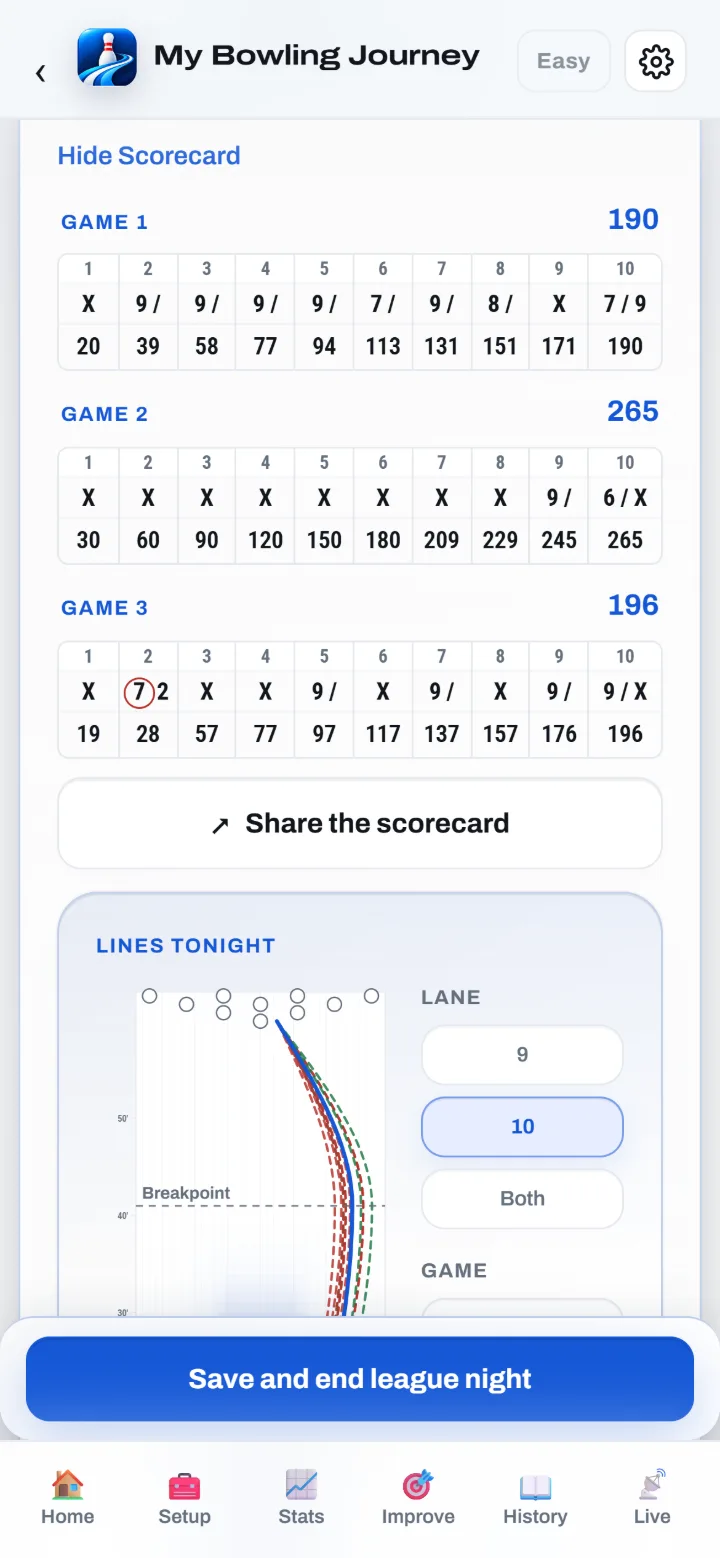
View Scorecard on Results shows your games tonight the way the center's sheet does: all ten frames of each game in one row.
Open it
- On a league night, tap the Results tab.
- Tap View Scorecard, under your new average.
- Tap Hide Scorecard to fold it away again.
What's on it
Each game has its name and score over a row of ten boxes. In each box:
- The frame's number at the top.
- Your marks: X for a strike, / for a spare, the pin count for a ball that left pins, and a dash for a miss.
- The running total under them.
A split's first ball is circled in red. On a 9-pin no-tap night, a no-tap strike's X is in its own color, so you can tell it from a real strike. The 10th frame's box is a little wider for its three balls.
It's your games, even while you're scoring teammates. A game only goes on the card once you've bowled it frame by frame to its last ball. A game you typed as a score alone isn't on it, and neither is one you're still bowling. With none finished yet, there's no View Scorecard at all.
Spot a mistake? Fix the frame on Scoring and the card follows. See Fixing or deleting a frame or a game.
Share the scorecard
Under the games, tap Share the scorecard. It sends a picture of the card: "Scorecard", your name, the league and the date, then each game with its score and its ten frames, and the app's name and web address. Your phone's share sheet opens, where you can send it or save the picture.
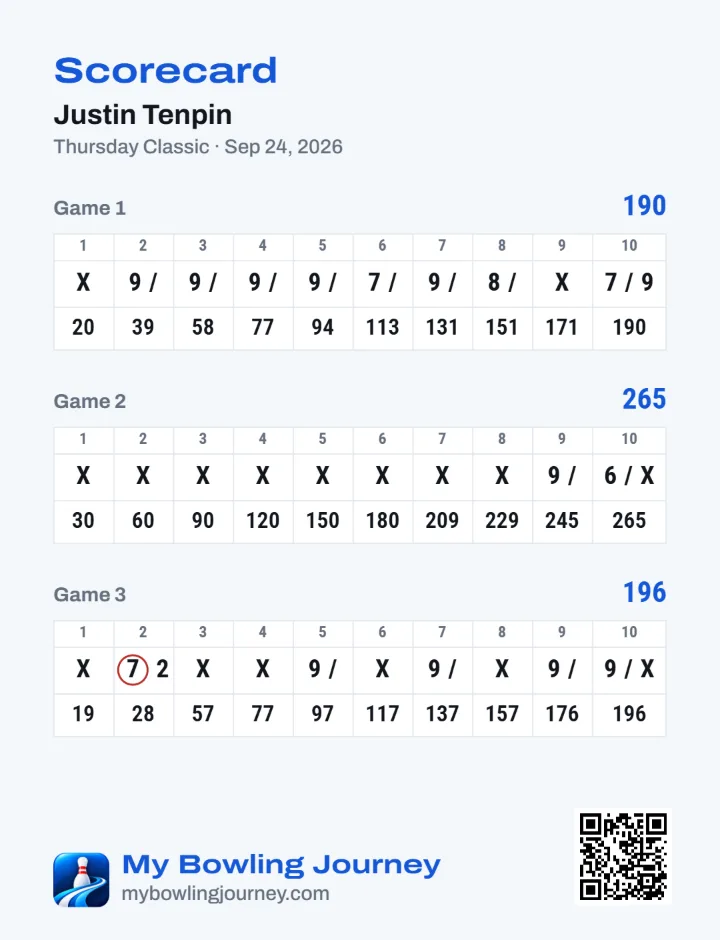
Where a phone can't send pictures, it sends the same as text: your name, the league and date, and a line for each game, like "Game 1: 190". More on Sharing a night, a card or a badge.
Past nights and tournaments
- A night you already saved: open it from History and its Results has View Scorecard too. See Opening a past night.
- A tournament: on the tournament's Results, How it went has a View Scorecard under each day or block you scored frame by frame. The card is named for the tournament.