 MY BOWLING JOURNEY
The app speaks six languages. Out of the box it follows your phone's language. You can pick one yourself any time, and it switches on the spot.
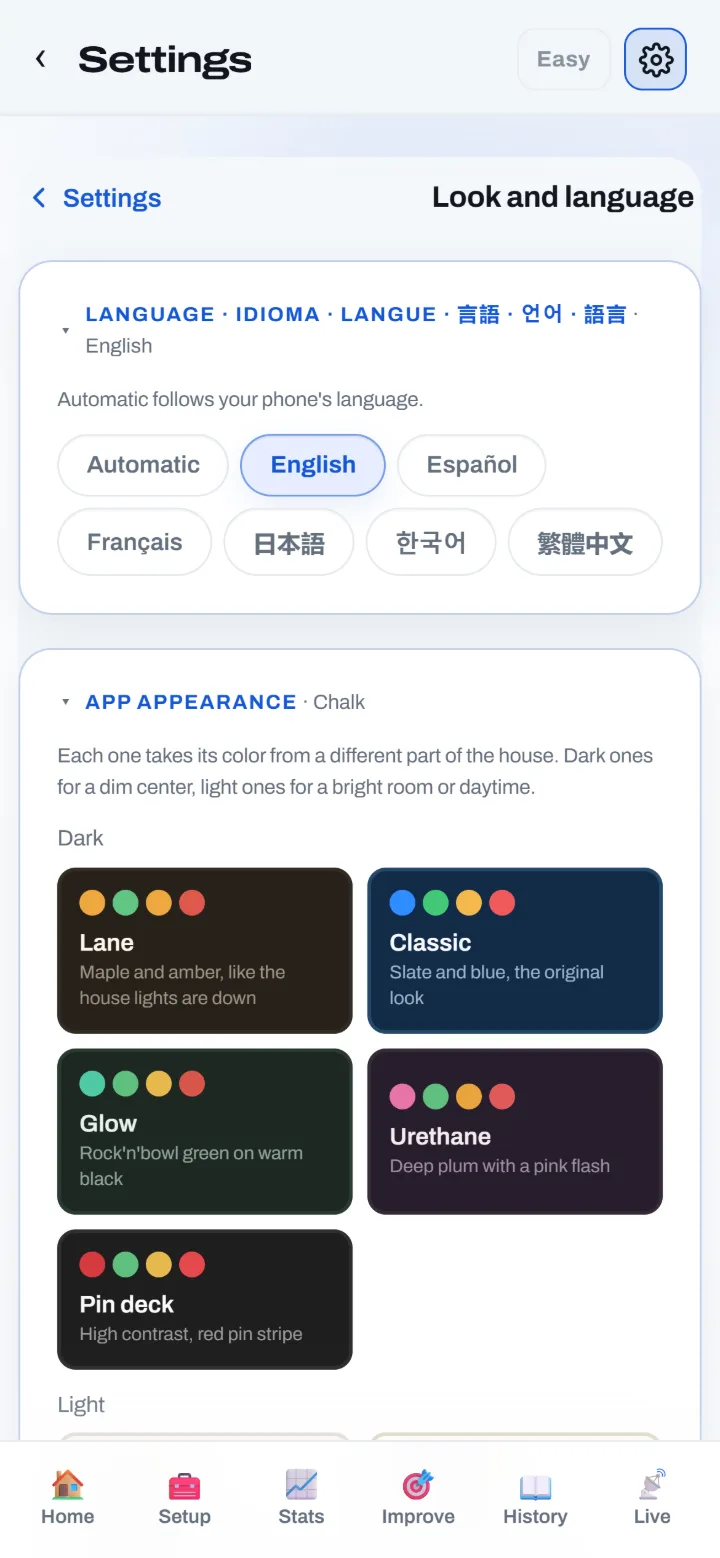
Change it
- Tap the gear (Settings) at the top right.
- Tap the Look and language tile.
- On the Language · Idioma · Langue · 言語 · 언어 · 語言 card, tap Automatic or a language: English, Español, Français, 日本語, 한국어 or 繁體中文.
The app changes over straight away, and Settings opens again on the same card, so you can switch back just as fast. The card's title is written in all six languages, and each language's name in its own, so you can find it whatever language the app is in.
Español is Latin American Spanish. Français is Canadian French.
Automatic
"Automatic follows your phone's language." It goes by the first language on your phone:
- Spanish, French, Japanese or Korean: the app is in that language.
- Chinese for Taiwan, Hong Kong or Macau: 繁體中文. Simplified Chinese stays in English.
- Anything else: English.
The card's heading shows Automatic and the language it picked.
What follows the language
- Every screen, button and card.
- Insights, the Nightcap and the Caddie write their answers in it.
- The how-to videos in Help, recorded in each language.
- The Privacy Policy and Terms of Service, which open in it.
- The words on the home screen widget.
What stays in English
- The Special thanks card in Help and About, which shows only while the app is in English.
Each phone keeps its own
The language is saved on the phone you pick it on (or in the browser, on the web), not with your account. Set it on each phone you use.