 MY BOWLING JOURNEY
Didn't score on your phone tonight? Take a photo or a screenshot of the center's scorecard, and the app reads the games off it for you. You check what it read, fix anything it got wrong, and save.
Reading a scorecard photo is part of Pro. Every new account has Pro for its first 30 days. On the free plan, the import screen shows just a Scorecard Snap card, with no photo to pick: "Reading the scores from a photo of your scorecard is part of Pro." with See what Pro adds.
Open the import
On a league night, tap Import scores, the small link beside Game Tracking and Frame Tracking on the Scoring tab. In practice it's in the same place on Games. Import scorecard opens.
It doesn't have to be tonight's card. You pick the date.
Read a card
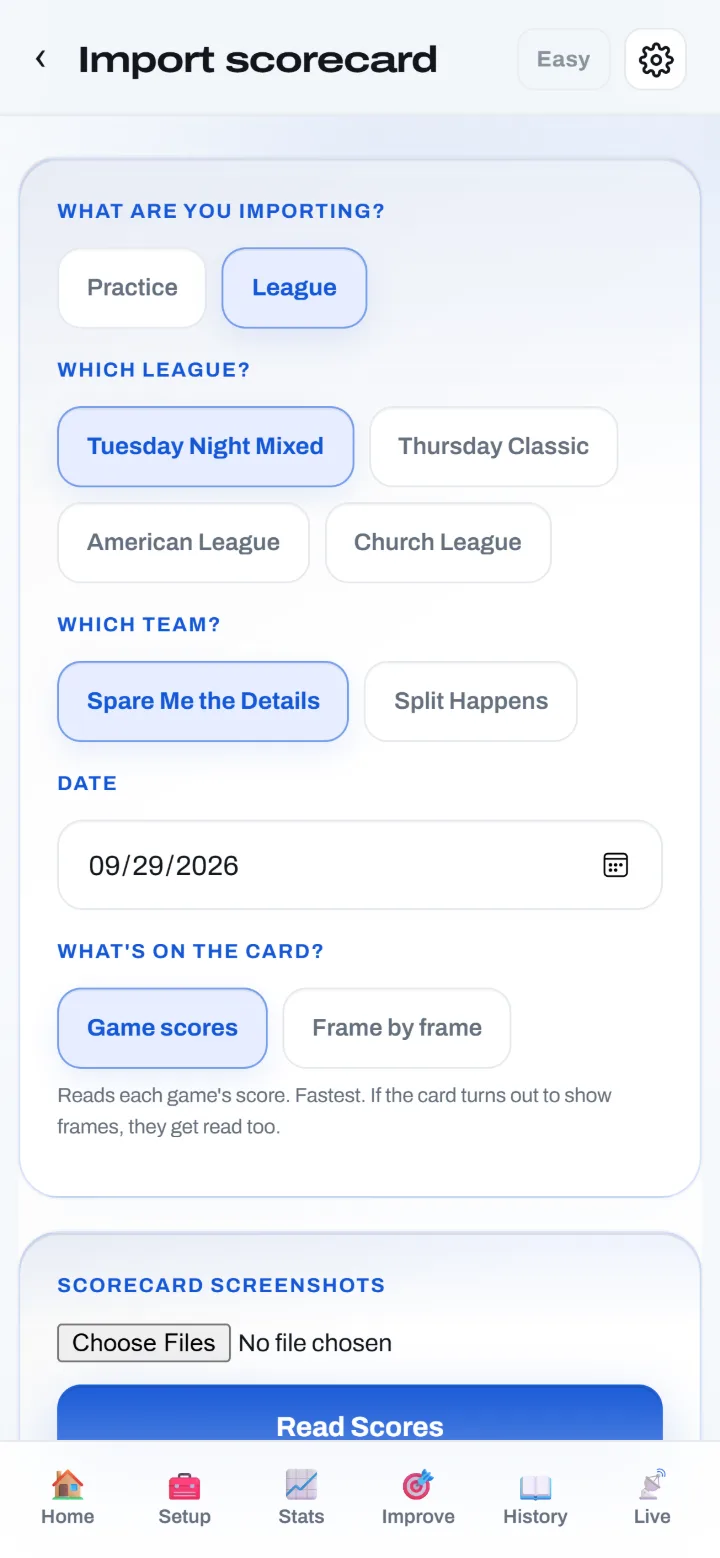
- Under What are you importing?, tap Practice or League. Tournament cards can't be imported. Score tournaments as you bowl them.
- For a league, check Which league?. The app starts on its best guess. If two of your leagues bowl that day of the week, neither has a night on that date yet, and the card's center doesn't settle it, it asks Which league is this card from? and picks nothing until you do.
- Under Which team?, pick the team whose names are on the card.
- Check the Date.
- Under What's on the card?, pick one:
- Game scores: reads each game's score. It's the fastest, and if the card shows frames, they get read too.
- Frame by frame: reads every ball and the pins it left. It's slower, and leaves can come back wrong, so you'll see each frame to check. Use a JPG or PNG photo or screenshot.
- Under Scorecard Screenshots, choose your photo or screenshot. You can pick up to six. Tap the × on one you picked by mistake.
- Tap Read Scores (or Read Frames). Reading a card can take a minute or two, and a few minutes for several pictures.
If the app says Nothing's broken: just busy, your pictures are still picked. Tap Read Scores again in a minute.
Match the names
Who's who lists each bowler read off the card, with how many games they have. Pick who each one is:
- a bowler from your team or your bowler list (the app suggests the closest match),
- add the name from the card as a new bowler, or
- Skip this bowler.
Take a second here. A wrong match puts someone else's games in that bowler's record. If the games don't add up to the series printed on the card, the app says so, so you can check the card. Then tap Continue.
Check and fix what it read
- Each game shows its score. A card with frames shows each game as a scoresheet: tap a frame to fix its pins.
- Flagged frames are the ones the app couldn't read for sure. Fix the pins, or tap ✓ This is right if they're already right.
- Score-only games have a score box you can correct.
- Where this goes still lets you change the league, team or date.
- Also sending to teammates lists every teammate you matched. Teammates with the app get theirs sent to confirm, and they count straight away. Teammates without it are saved on your phone with yours. Fix anything misread before you send.
- A game you already typed a score for that the card disagrees with: the app asks Game 2: which score counts? and you keep yours or use the card's.
- A game you already scored frame by frame keeps your frames as you scored them.
When it all looks right, tap Looks Good. Save. With teammates on the card it reads like Save & Send To 2 Teammates.
The app opens that night's Results and says what it imported. Check the Results, then save the night. An older night you leave without saving is saved for you. See Saving and finishing.
Past nights you kept in a spreadsheet come in a different way: from a file, in Settings > Your data > Import scores. See Exporting and importing files.